Short answer
Open Search in the Photos app and type what’s in the photo: “dog”, “beach”, a place, or words that appear in the picture. iPhone recognises many objects and scenes on its own. To clear out what you find, Clear Gallery goes a step further: describe what you want gone (“memes”, “food”, “blue t-shirt”) and it returns matching photos, selected and ready to review and delete, using AI that runs entirely on your iPhone.
Method 1: Search in the Photos app
Tap Search in Photos and start typing. The built-in search understands objects (“car”, “cat”), scenes (“beach”, “snow”), places, people you’ve named, and text inside photos thanks to Live Text. Newer versions of iOS also understand longer, more natural descriptions on supported iPhones.
It’s designed for finding a photo you want to look at. When the goal is to delete a whole category, you still go through the results and pick photos yourself.
Method 2: Describe and delete with Clear Gallery
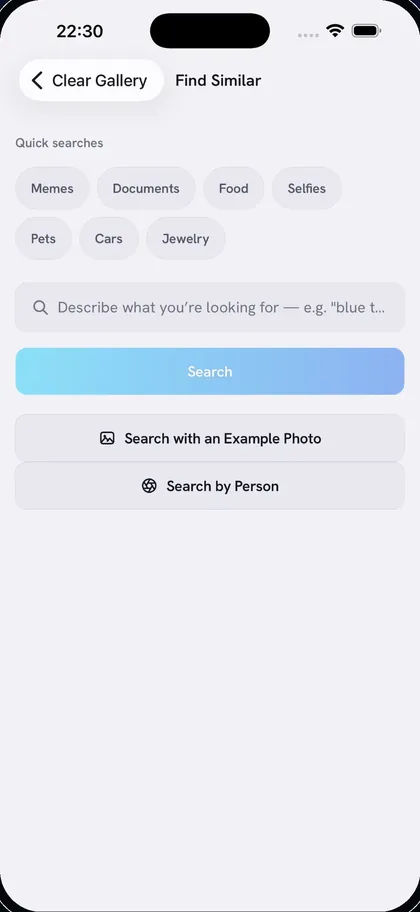
Clear Gallery is built around this exact job. When you turn on its AI, a vision-language model on your iPhone reads every photo once and stores a compact numeric summary of what it shows. When you type a description, your words are turned into the same kind of summary, and the photos that match best come back. No photo, search or index ever leaves your phone.
- Install Clear Gallery and turn on the AI: a one-time download of about 600 MB (Wi-Fi recommended), then indexing on your phone.
- Tap Find Similar and describe what you’re looking for, or tap a quick search: Memes, Documents, Food, Selfies, Pets, Cars or Jewelry.
- Results start selected. Choose Strict, Normal or Broad to control how close a match has to be, and deselect anything you want to keep.
- Tap Delete and confirm.
Search with an example instead
Some things are easier to show than to describe. Tap Search with an Example Photo, pick one to three photos of the kind you don’t want, and Clear Gallery finds others that look like them. Examples that look alike give the best results. For copies of the same moment taken seconds apart, the duplicate finder is quicker: see how to find duplicate photos on iPhone.
Tips for better results
- Use short, concrete words for what you can see: “receipt”, “whiteboard”, “parking lot”.
- Add a color or detail to narrow it down: “red car”, “blue t-shirt”.
- Search in English; Clear Gallery currently understands English descriptions.
- Looking for words written inside photos? The Photos app’s Live Text search is better at reading text; Clear Gallery matches what a photo looks like.
Searching is one part of a bigger clean-up. To clear the rest, start with deleting all screenshots at once.
Questions
Does Clear Gallery send my photos or searches anywhere?
No. The AI runs on your iPhone, and the app has no servers. Your photos, your searches and the index it builds never leave your device.
Does it work offline?
Yes, once the AI models are downloaded. Search, duplicates and look-alikes all run on the phone without a connection.
What languages does the search understand?
English. Describe photos in English for the best results.
