Short answer
In the Photos app, tap Select and drag your finger across the grid. Whole rows are selected as you move, which is far faster than tapping photos one by one. To clear thousands without scrolling through all of them, delete by group instead: screenshots, duplicates and videos first. Then empty Recently Deleted, or the space won’t come back for 30 days.
Before you start
Two things decide whether a big clean-up goes well:
- iCloud Photos syncs deletions. If iCloud Photos is on, deleting a photo on your iPhone also deletes it from iCloud and from every device signed in to the same Apple Account. If you want a copy, back up first.
- Deleted isn’t gone yet. Deleted photos move to the Recently Deleted album and stay there for 30 days. Your free storage only goes up once that album is emptied.
Method 1: Drag to select in the Photos app
- Open Photos and go to your library grid. Pinch to zoom out so more photos fit on the screen.
- Tap Select in the top-right corner.
- Touch the first photo you want to delete and, without lifting your finger, slide sideways and then up or down. Every photo between your starting point and your finger is selected. Keep sliding toward the edge of the screen and the grid scrolls for you.
- Tap any photo you want to keep to deselect it.
- Tap the Trash button and confirm.
This works well for a block of photos from the same period, like an old trip. It doesn’t help you find the photos worth deleting, and that is where most of the time goes.
Method 2: Delete by group, not one by one
The quickest big clean-ups start with the photos you’ll never miss. The Photos app already sorts several of them for you:
- Screenshots live in Media Types › Screenshots. Most people have hundreds. See how to delete all screenshots at once.
- Duplicates are in Utilities › Duplicates on iOS 16 and later, with a Merge button that keeps the best copy. See how to find duplicate photos.
- Videos and screen recordings are in Media Types. Videos take far more space than photos, so a few deletions here can free gigabytes.
In recent versions of iOS, Media Types and Utilities are under Collections (scroll down from the library, or tap Collections). In older versions they’re in the Albums tab.
Method 3: Let an app find the groups for you
Sorting by hand still means hunting through your library. Clear Gallery does the hunting for you. It uses an AI model that runs on your iPhone (nothing is uploaded) to gather photos you can clear in one go:
- Screenshots, gathered the moment you open the app, with no setup.
- Documents and receipts: photos of paperwork you needed once.
- Near-identical shots, grouped so you keep one from each set.
- Anything you can describe: type “memes”, “food” or “blue t-shirt”.
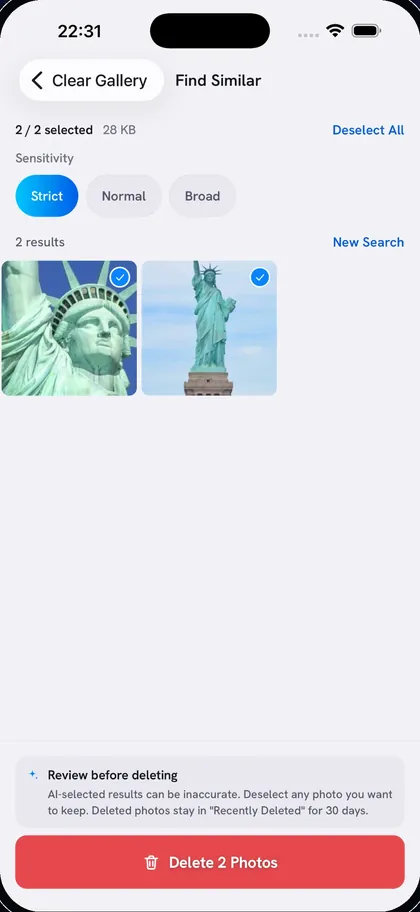
- Look-alikes of one to three example photos you pick.
Everything it finds starts selected for review. Deselect what you want to keep, and one confirmation deletes the rest; afterwards the app shows how much storage you got back. Clear Gallery is free, with no account and no ads. The AI features need a one-time download of about 600 MB.
Method 4: Use a Mac or iCloud.com for very large libraries
If iCloud Photos is on, deletions sync everywhere, so a bigger screen can help. In Photos on a Mac, click the first photo and Shift-click the last to select everything in between, then delete. On iCloud.com, select several photos with Command-click (Ctrl-click on Windows) and delete them. The photos disappear from your iPhone too.
Get the space back: empty Recently Deleted
- In Photos, open Recently Deleted (under Utilities, or in the Albums tab on older versions) and unlock it with Face ID, Touch ID or your passcode.
- Tap Select, then Delete All, and confirm.
Storage can take a few minutes to update in Settings › General › iPhone Storage.
Questions
Can I select all photos at once on iPhone?
Not in the main library view, where the Photos app has no Select All. Inside some albums and collections, tapping Select shows a Select All option. In the library itself, dragging to select is the fastest way.
Why didn’t my storage go up after deleting photos?
Deleted photos stay in Recently Deleted for 30 days, so empty that album first. Also, if Optimize iPhone Storage is on, many photos were only kept as small versions on your phone, so deleting them frees less space than you might expect.
Will deleting photos on my iPhone delete them from iCloud?
Yes, if iCloud Photos is turned on. Deletions sync to iCloud and to every device signed in to the same Apple Account.
