Short answer
On iOS 16 and later, open Photos and go to Utilities › Duplicates. Tap Merge next to a set to keep the best copy and remove the rest. That album only catches copies of the same image, though, not the five separate shots you took of the same moment. For those near-identical shots, Clear Gallery compares what’s in each photo on your iPhone and groups them so you keep one.
What counts as a duplicate
iPhone treats two photos as duplicates when they are copies of the same image, such as a photo saved twice from a message or the same picture in two sizes or file formats. Shots you took a second apart are different images to iPhone, even if they look almost identical, so they never appear in the Duplicates album.
That second kind is often where most of the clutter is: bursts of the same pose, retakes, five versions of one sunset.
Method 1: Merge duplicates in the Photos app
- Open Photos and find Utilities. In recent versions of iOS it’s under Collections (scroll down from the library or tap Collections). On iOS 16 and 17 it’s in the Albums tab.
- Tap Duplicates. If you don’t see it, your iPhone hasn’t found any yet (see the questions below).
- Tap Merge next to a set and confirm. To handle every set at once, tap Select, then Select All, then Merge.
Merging keeps the highest-quality version, combines details such as captions, keywords and favorites into it, and moves the other copies to Recently Deleted.
Method 2: Group near-identical shots with Clear Gallery
Clear Gallery looks at what’s in each photo instead of comparing files. An AI model on your iPhone turns every photo into a compact description of its content; photos taken around the same time whose descriptions are almost identical are grouped into a set. Nothing is uploaded.
- Install Clear Gallery (free) and turn on the AI features: a one-time download of about 600 MB, then a few minutes of indexing for a typical library.
- Tap Duplicates on the home screen. Each set shows its similar photos side by side.
- The highest-resolution photo in each set is marked Keep. Tap another photo to keep that one instead, or tap Skip this set to leave the set alone.
- Tap Delete. iOS asks you to confirm, and the photos go to Recently Deleted for 30 days.
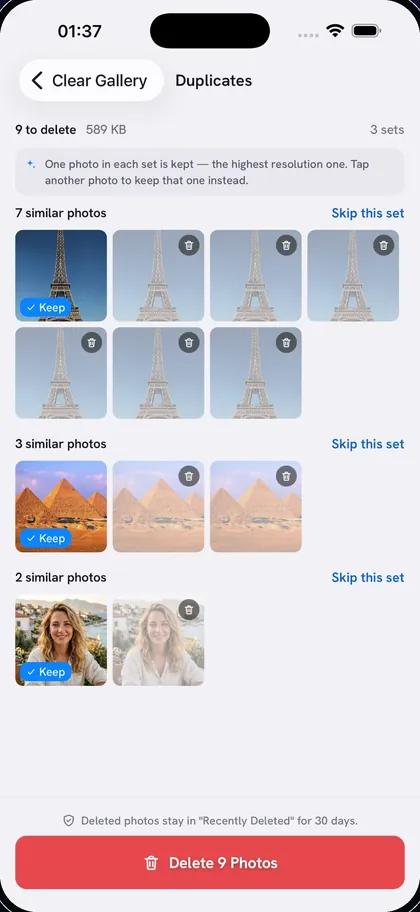
If you’ve set up Person Search, Clear Gallery also checks faces, so similar-looking photos of different people taken in the same place stay in separate sets.
Which should you use?
Both. Start with Merge in the Duplicates album: it’s built in and handles exact copies. Then use Clear Gallery for the near-identical shots the Duplicates album doesn’t treat as duplicates.
Clearing a large library? Duplicates are one group among several; see how to delete thousands of photos quickly, or find photos by describing them to clear a whole category at once.
Questions
Why don’t I see a Duplicates album on my iPhone?
It only appears on iOS 16 or later, and only once iPhone has found duplicates. Finding them requires your library to be analysed first, which happens in the background, mostly while your iPhone is locked and charging, so after a large import it can take a while to show up.
Does merging duplicates delete photos?
The extra copies move to Recently Deleted, where you can recover them for 30 days. The merged photo stays in your library.
Will Clear Gallery delete photos without asking?
No. Every set is shown for review first, nothing is deleted until you tap Delete, and iOS asks you to confirm.
